
Microsoft Outlook Chaos vs. Clarity: How Changing One Setting Transformed My Inbox
- TUFSM

- Jul 31
- 3 min read
Updated: 7 days ago
Everywhere I go, I see people using Outlook in the exact same default layout — emails stacked on the left, reading pane on the right — and I swear, it’s one of those things everyone accepts without ever questioning whether it actually works.
Because for me? It doesn’t.

You end up with this long, stretched‑out list of emails where you can barely see the subject. Everything is bunched up. The preview is huge, but somehow you still don’t get the information you actually need at a glance. It’s like Outlook is trying to show you everything and nothing at the same time.
I’ve always had my reading pane at the bottom. Always. And the moment I switch someone else’s Outlook to that layout, they look at me like I’ve just shown them a secret passageway in their own house.
When the reading pane sits underneath the inbox, suddenly the whole thing makes sense. You can click through emails quickly, you can see the subject clearly, and you’re not fighting with a layout that’s trying to be clever instead of useful. It feels more like a workflow and less like a wall of noise.
And then there’s the headers. People forget you can click on them, customise them, strip them back. I only keep three: from, subject, date. That’s it. I don’t need anything more than that. I don’t want anything more than that. The moment you start adding categories, flags, icons, attachments, importance markers… it becomes visual clutter. And clutter is the enemy of clarity.
With the reading pane at the bottom, those three headers suddenly become powerful. You can sort, jump, skim, prioritise. You can actually manage your inbox instead of drowning in it.
I know everyone has their own way of working, but I genuinely don’t understand how people cope with the default layout. It feels like trying to read a book sideways.
So I’m curious — does anyone else do this? Does anyone else put their reading pane at the bottom? Or are you all living in the Outlook chaos and pretending it’s fine?
How do you have your Outlook?
Why not just try it for a week and see if it makes your life easier?
It’s such a tiny change, but it genuinely transforms how you move through your inbox. And it takes about ten seconds.
You just navigate to the View menu in the Outlook navigation bar. Then click on Layout.

And instead of “Reading Pane: Right”, switch it to “Reading Pane: Bottom.”
That’s it. No complicated settings. No hidden menus. Just one simple toggle.

Once you’ve done that, the magic really starts when you click on your column headers — From, Subject, or Received. Suddenly you can sort your inbox in a way that actually makes sense. If you’ve been away on holiday, you can instantly see who has replied to what. You can group emails by subject and skim through them in batches. You can
spot duplicates, missed threads, and conversations that have moved on without you.

It’s especially helpful when you’re trying to catch up quickly. If you know someone else has already handled a particular email chain, you can bulk‑read and clear it without wasting time opening each one individually.
It’s such a small change, but it gives you control back. Instead of Outlook deciding how you should read your emails, you decide. And honestly, that’s the difference between inbox chaos and inbox clarity.
An even better trick. If you select the email and are curious if there are another eails with the same subject without having to search. Just click the email first
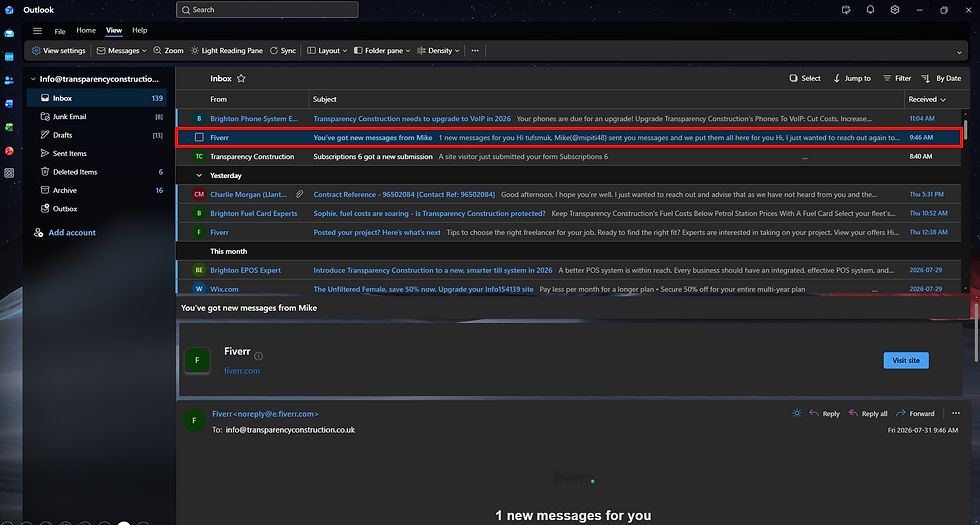
Click the subject heading

And it will take you to the subject of all of those emails.

These tips help me get organised! I hope they help you too.
If you do try the bottom reading pane, let me know how you get on. I love hearing how people organise their digital chaos — especially when one tiny change suddenly makes everything feel lighter. You can always email me at info@transparencyconstruction.co.uk or call me on +447849 777198 if you want to chat about Outlook setups, admin workflows, or anything construction‑related. I’m always happy to help.


Comments